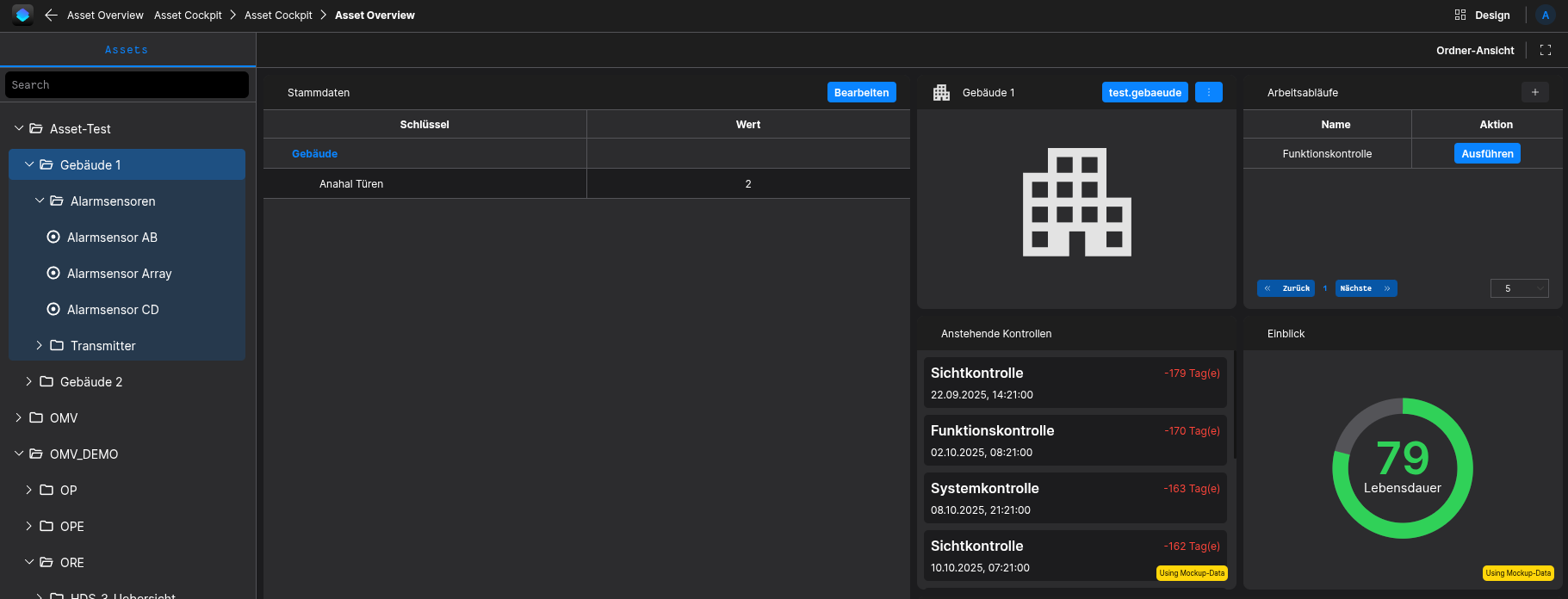
Workflows
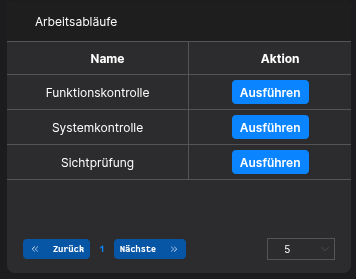
The Workflow Widget allows the user to provide specific Actions which can be executed on that Asset type.
Requirements
To be able to define Workflows, your Asset has to be setup correctly first. It is required to have an Asset-Type containing multiple Aspect-Types.
You also have to setup a Workflow
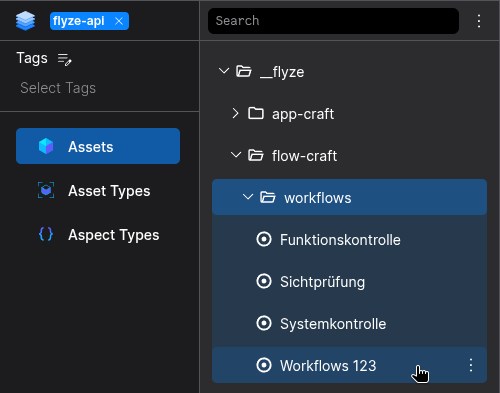
To achieve this, simply add a new Asset under the workflows-Folder with the flyze.workflow-Type, e.g.:
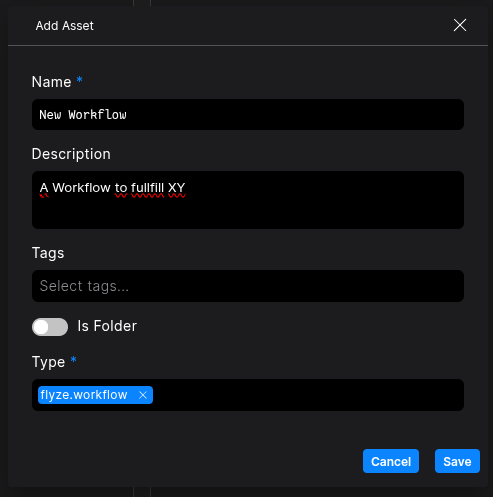
And setup the new Workflow accordingly
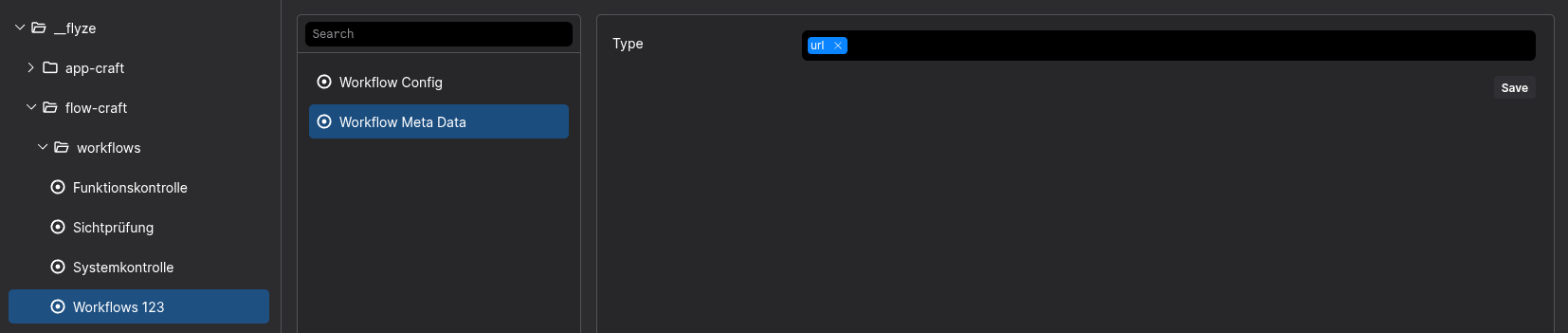
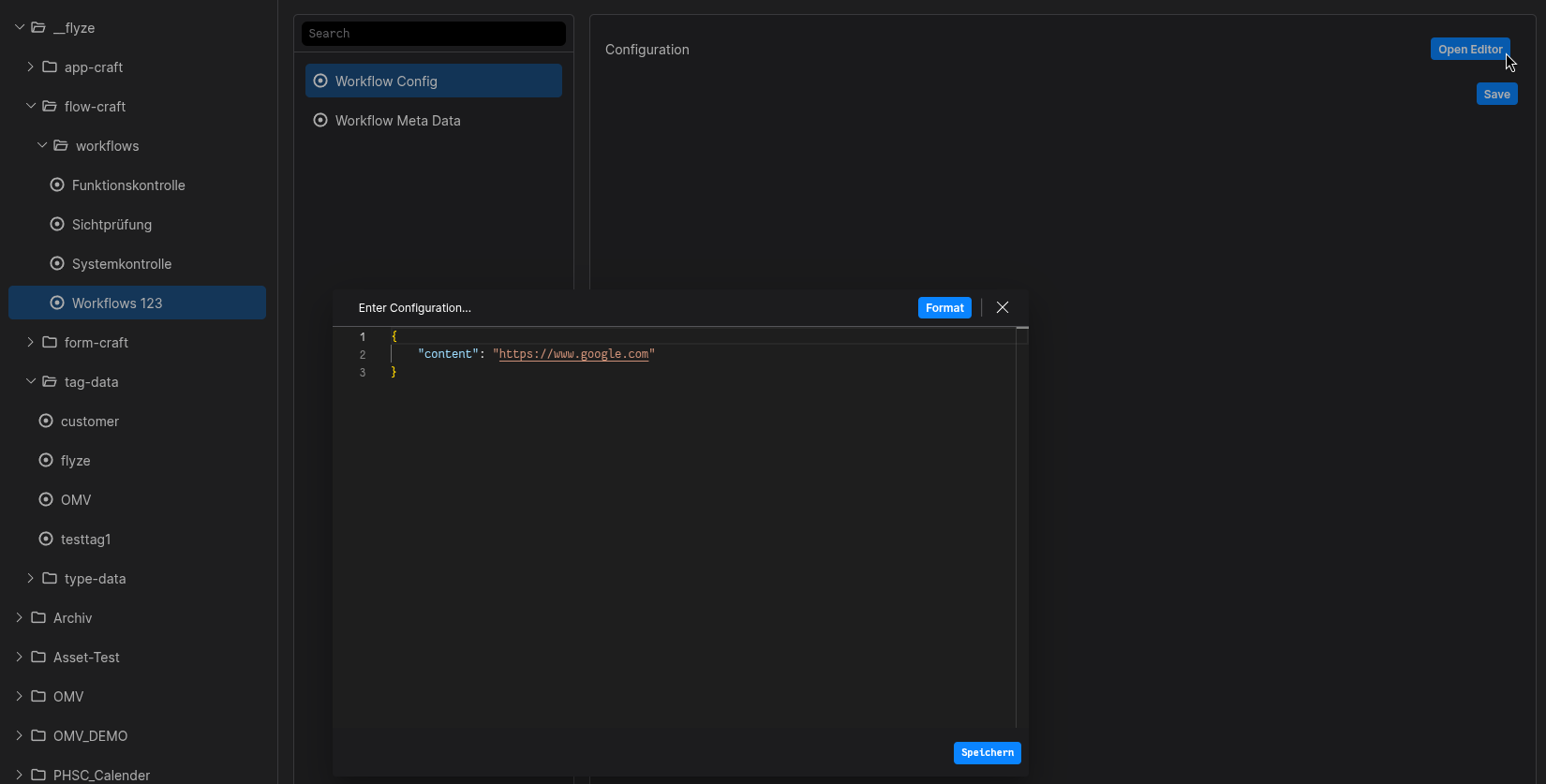
It is mandatory that these Requirements are met!
How to setup
Getting started
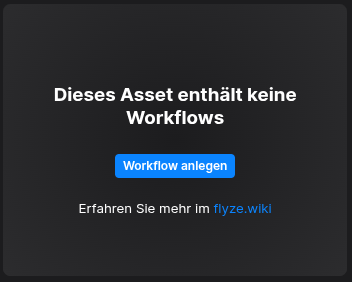
You have to setup the Master-Data in the Asset-Manager-App, either by clicking the "Create Master-Data"-Button or by manually navigating to the Asset-Manager-App in your flyze.ecosystem. Here you need to locate the asset-types-Folder.
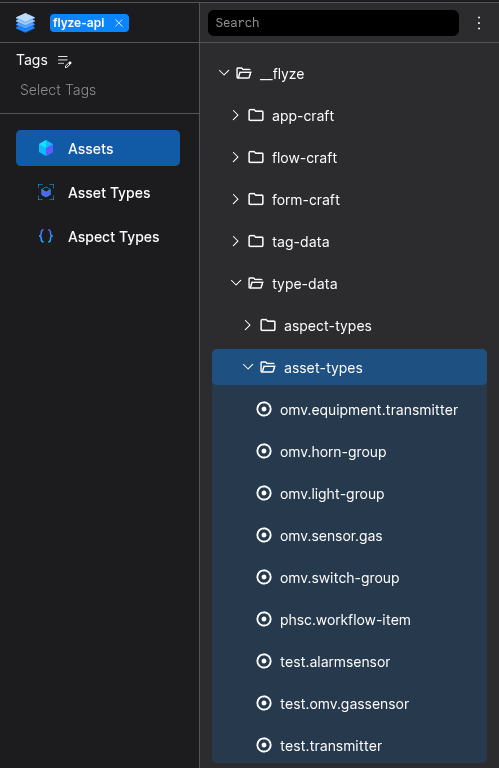
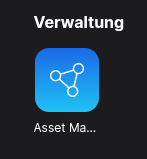
Asset-Manager
Step 1
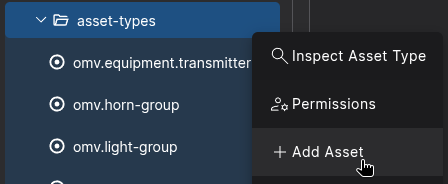
Click the Node-Actions Button to create a new Asset under the asset-types-Folder

Select Add-Asset
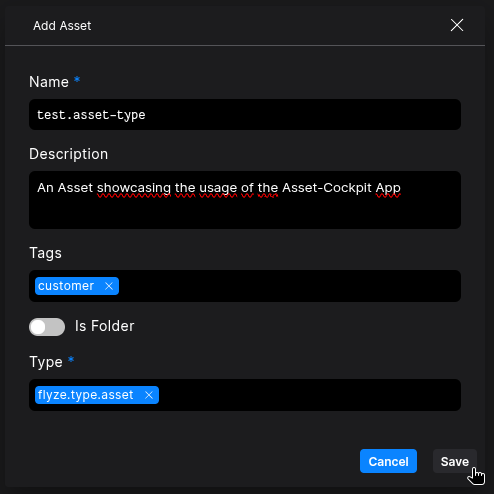
Configure your Asset, and select flyze.type.asset as Type
Step 2
Switch to the List-Edit Mode
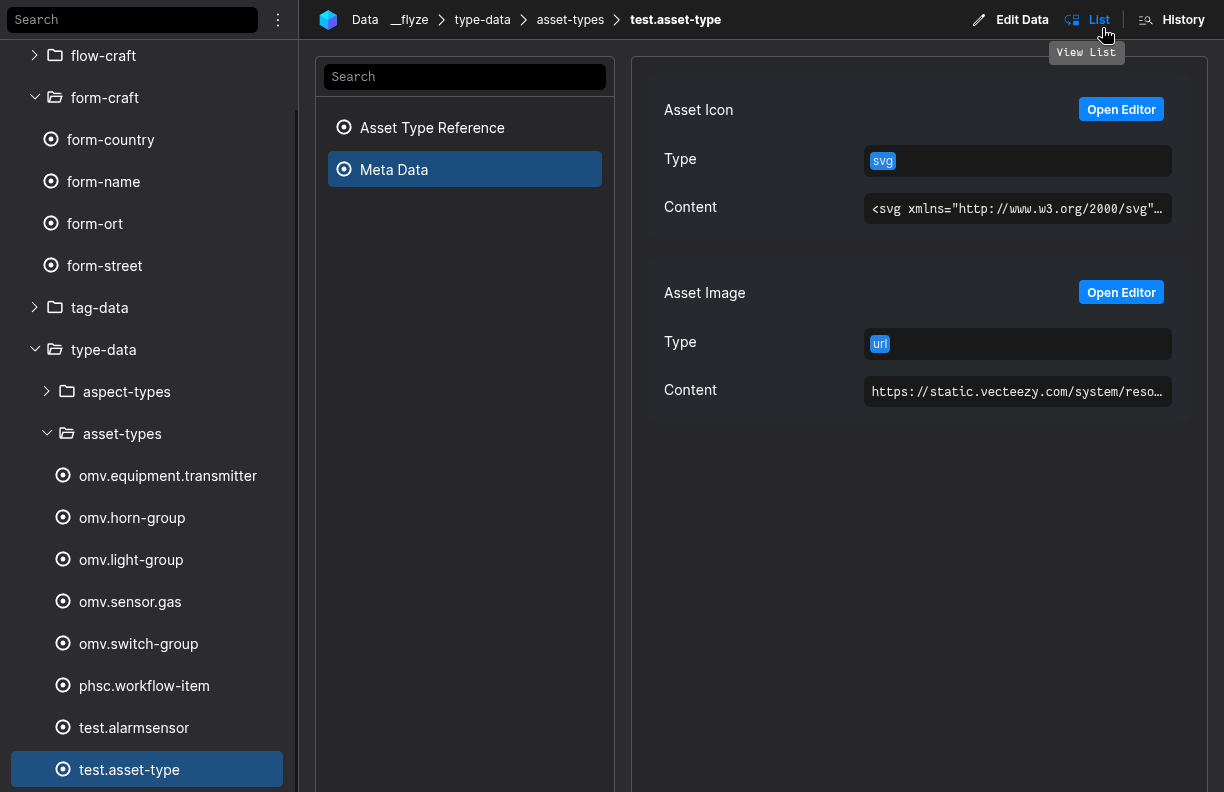
Select the Aspect Master Data in the Aspect-List

Switch to the Edit-Mode and click the Add new Data-Button

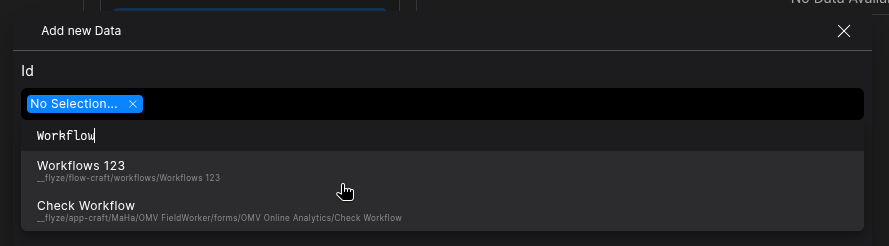
Select an Workflow which you want to add to the Asset

Be sure to save or commit your changes
Result
The Workflow should be displayed in the Workflows-Widget