
HTML-Column
📘 Developer Guide
With the HTML-Column Brick, you are able to render HTML-Content into your tables.
🔁 Example
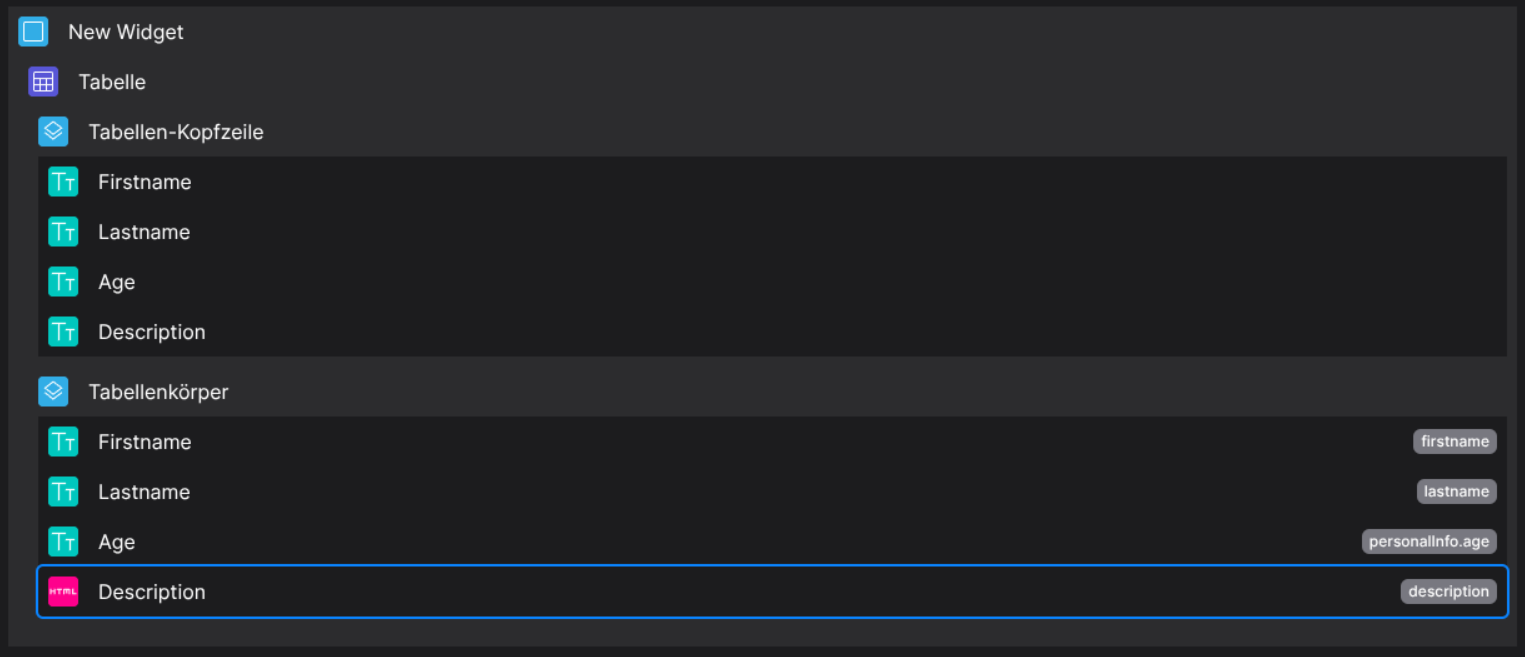
Designer
(Droppable in body columns and header columns)
Runtime
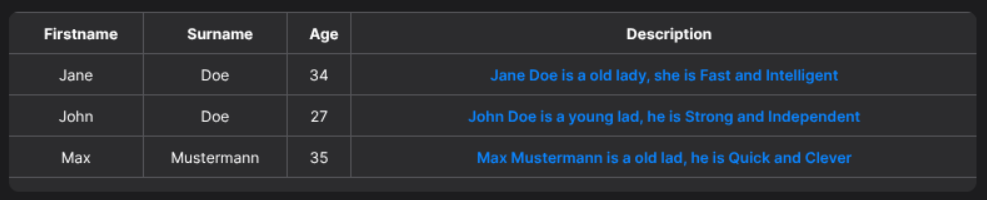
This example uses the following data set:
{
  "data": [
    {
      "id": "123",
      "firstname": "Jane",
      "lastname": "Doe",
      "personalInfo": {
        "age": 34,
        "gender": "female"
      },
      "description": [
        "Fast",
        "Intelligent"
      ]
    },
    {
      "id": "456",
      "firstname": "John",
      "lastname": "Doe",
      "personalInfo": {
        "age": 27,
        "gender": "male"
      },
      "description": [
        "Strong",
        "Independent"
      ]
    },
    {
      "id": "789",
      "firstname": "Max",
      "lastname": "Mustermann",
      "personalInfo": {
        "age": 35,
        "gender": "male"
      },
      "description": [
        "Quick",
        "Clever"
      ]
    }
  ]
}
⚙️ Configuration Properties
(Extends BodyCell or HeaderCell)
component: 'FyzSbTableCellHtmlComponent'
component.config
| Key | Label | Description | Default Value |
|---|---|---|---|
code |
The HTML Code | You can either pass a string which will be parsed as HTML or create a script which returns valid HTML. Also accepts internal Interpolation like {{row.xyz}} string | { type: 'script', data: 'return {...}'} |
- |
backgroundColor |
The background color of the HTML-Wrapper | Supports internal scripting engine, see the Example | - |
component.contentByPropPath
| Key | Label | Description | Default Value |
|---|---|---|---|
type |
The type of the display mechanism | 'script' |
- |
data |
The script which will be executed and parsed. | The script as string needs to return a value string |
- |
🛠️ Usage
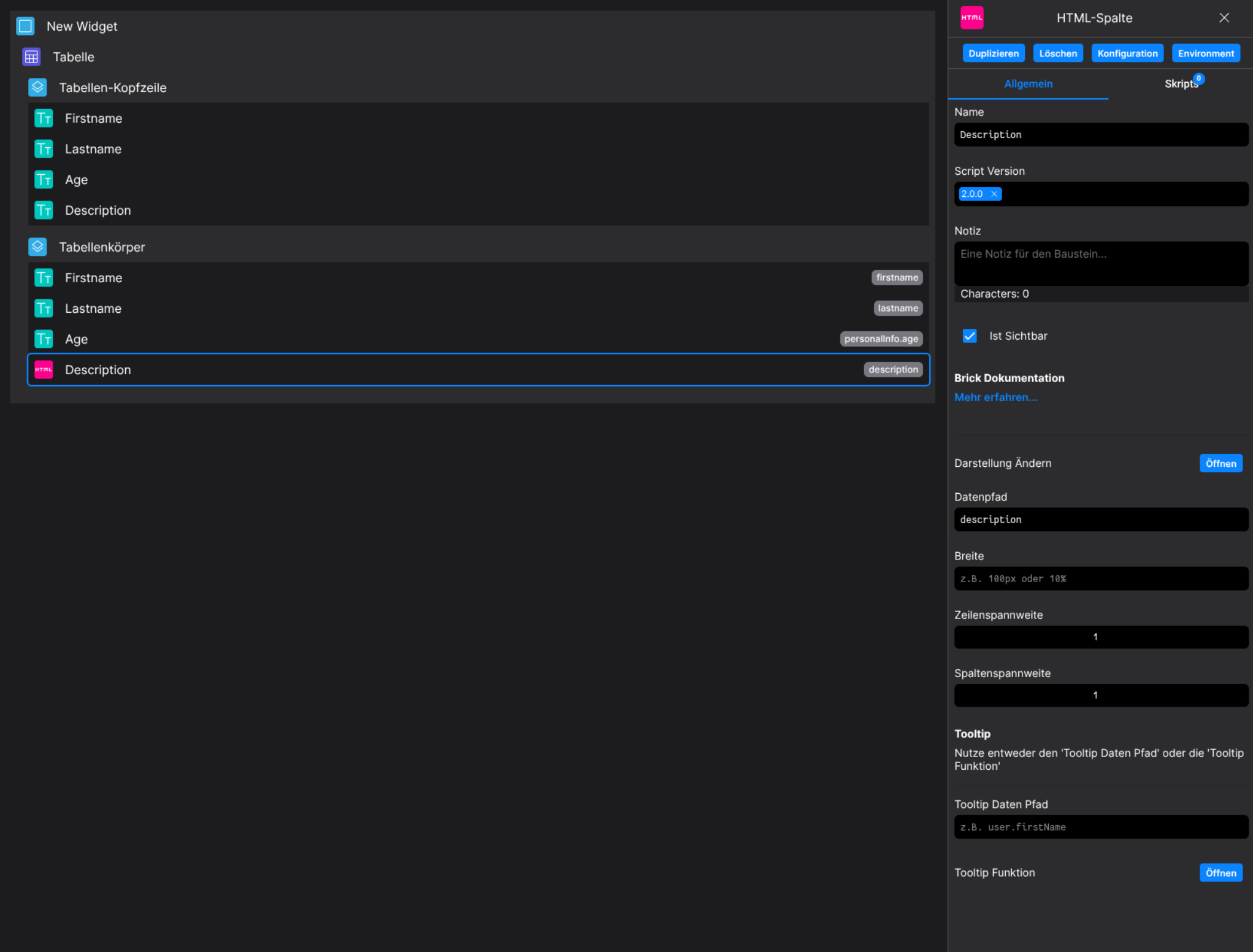
Designer
(Use the build in configuration Inputs in the right Side-Nav)
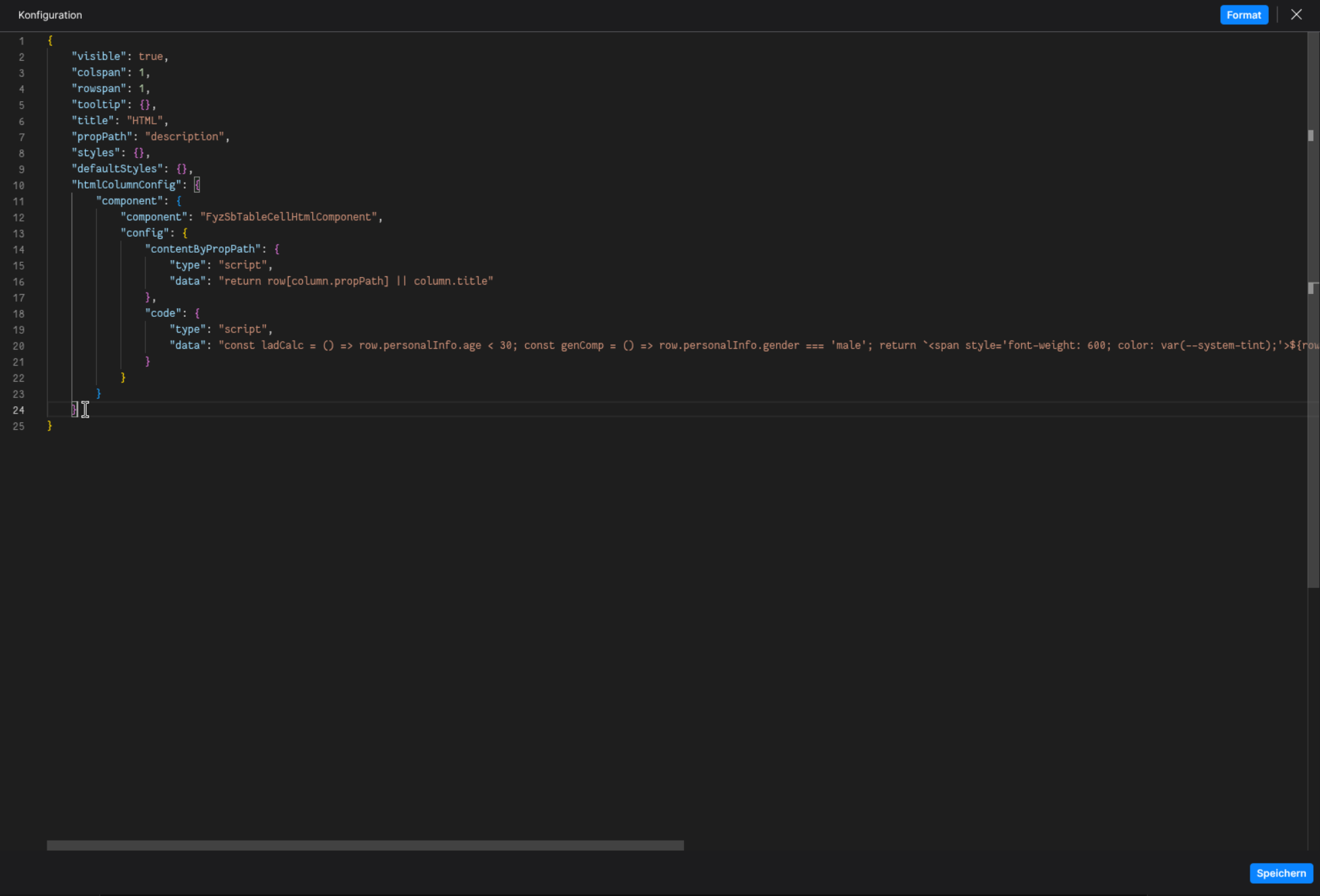
Config
(Edit the whole configuration of the HTML-Column to your liking)
⌨️ Programmatical Data
Example of how to use the internal scripting to display advanced HTML Columns
Set the code object to type 'script' and pass code as string into the data property
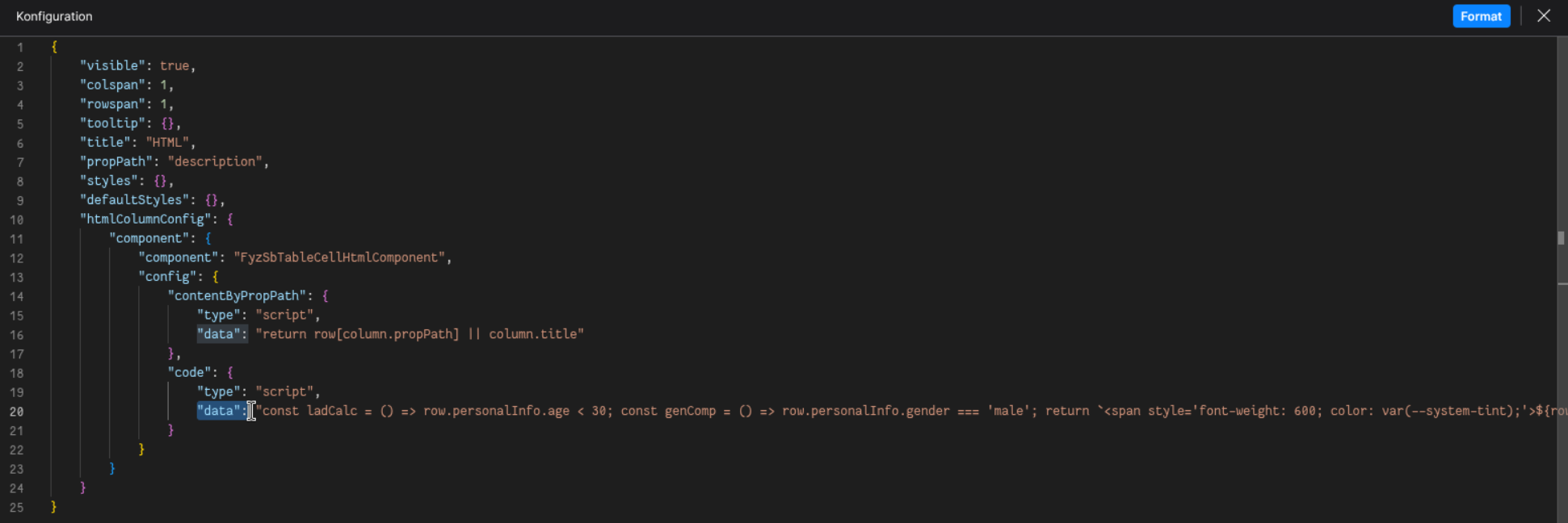
const ladCalc = () => row.personalInfo.age < 30;
const genComp = () => row.personalInfo.gender === 'male';

return `
  <span style="font-weight: 600; color: var(--system-tint);">
    ${row.firstname} ${row.lastname} is a
    ${ladCalc()
      ? genComp()
        ? 'young lad'
        : 'young lady'
      : genComp()
        ? 'old lad'
        : 'old lady'},
    ${genComp() ? 'he' : 'she'} is ${row.description.join(' and ')}
  </span>
`;

// Which translates to
"const ladCalc = () => row.personalInfo.age < 30; const genComp = () => row.personalInfo.gender === 'male'; return `<span style='font-weight: 600; color: var(--system-tint);'>${row.firstname} ${row.lastname} is a ${ladCalc() ? genComp() ? 'young lad' : 'young lady' : genComp() ? 'old lad' : 'old lady'}, ${genComp() ? 'he' : 'she'} is ${row.description.join(' and ')}</span>`"
This will result in a HTML like seen in Runtime
</details>