
Icon
📘 Developer Guide
With the Icon Brick, you can easily add icons to your dashboards.
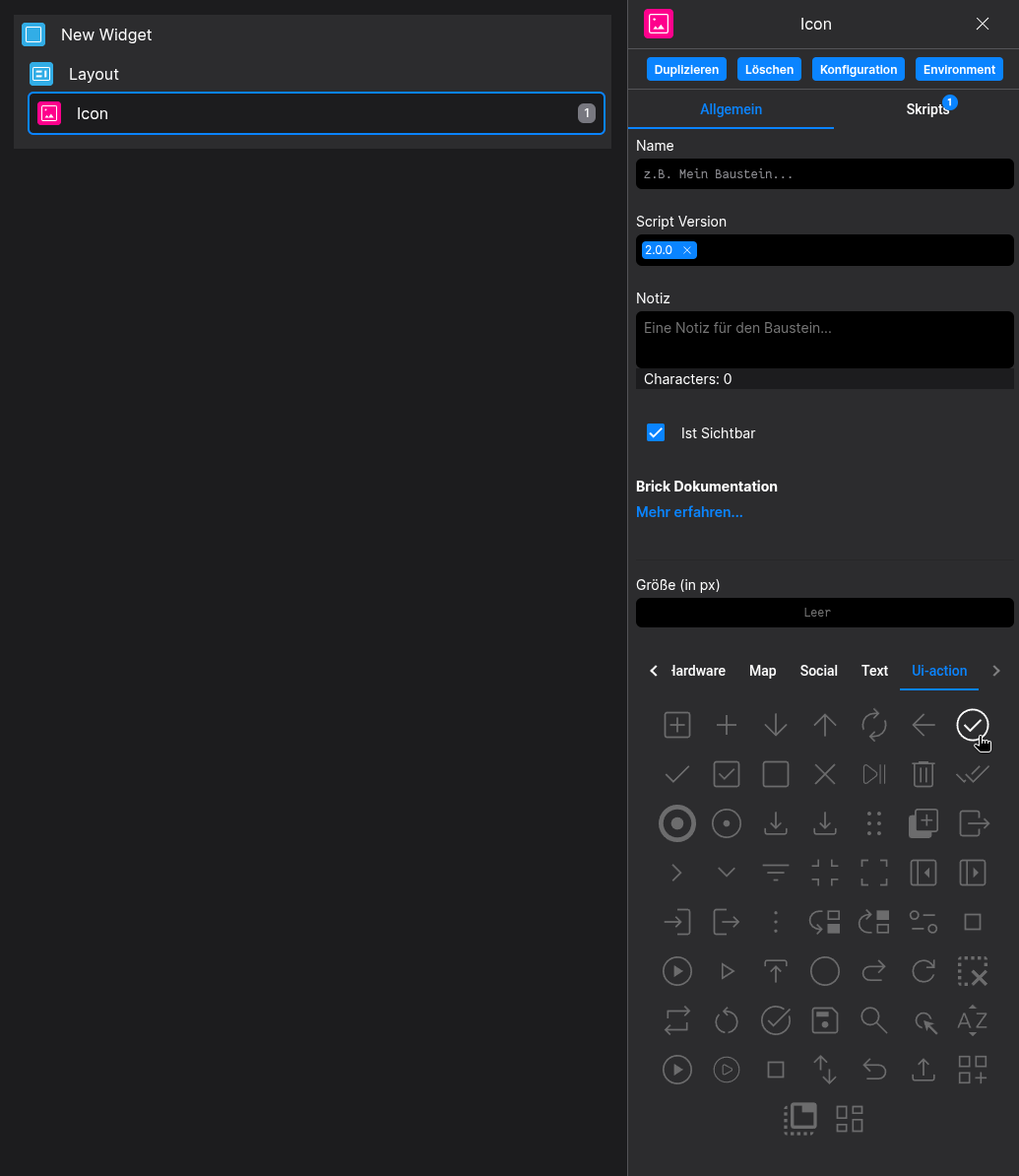
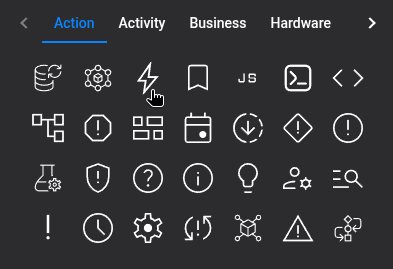
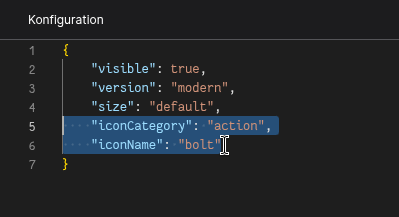
Either you use the Icon Picker in the right Side-Nav to choose your icon, or you can directly edit the configconfiguration of the brick.
🔁 Example
Designer
Runtime

⚙️ Configuration Properties
| Key | Label | Description | Default Value |
|---|---|---|---|
id |
ID of the Icon | Can be selected using CSS via #flyze-icon-idstring UUID |
Random UUID |
version |
Decider for the version of the Icon | modern, since legacy will be removed in the It just exists for backward modern legacy |
legacy |
size * |
The size of the Icon | Defines the custom to create your own sizes.xsmall | small | default | medium | large | xlarge | custom |
default |
iconCategory |
The Icon Category | e.g. socialExplore all available categories string |
- |
iconName |
The Icon Name | e.g. ecoExplore all available icons string |
- |
customSizeName |
The custom size attribute name | e.g. massiveLets you create your own custom size. You can target via CSS with [size="massive"]string |
- |
customStateName |
The custom state attribute name | e.g. insaneLets you create your own custom state. You can target via CSS with [state="insane"]string |
- |
customSvg |
A custom SVG string | Lets you include your own custom SVG.string |
- |
🎨 CSS Variables
(These variables will even allow you to override predefined states without the use ofusing !important)
–
--fyz-sb-icon-width: width of the Icon translates to the–--fyz-sb-icon-height: height of the Icon translates to the–--fyz-sb-icon-fill: color of the Icon translates to the
🛠️ Usage
Designer
(Simply click the desired icon, the configuration will be updated automatically)
Config
2.⌨️ Programmatical Data
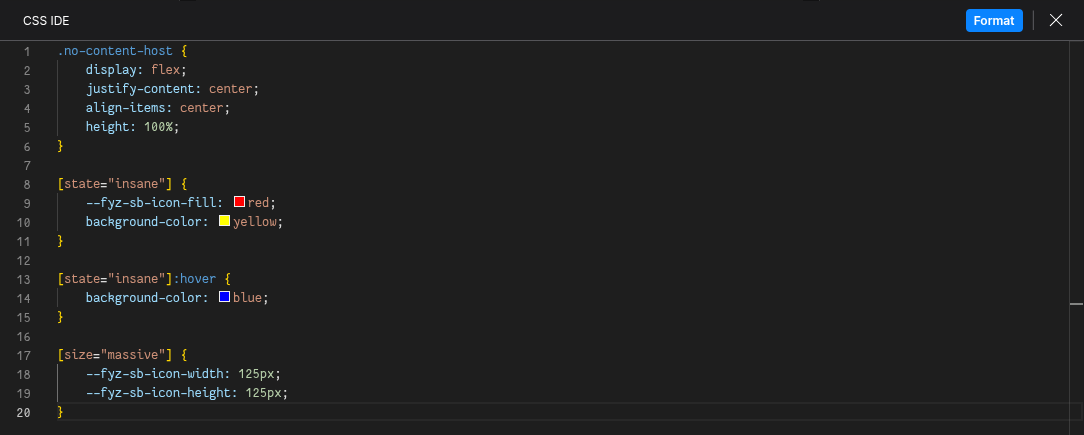
2.1 How to style custom States/Sizes
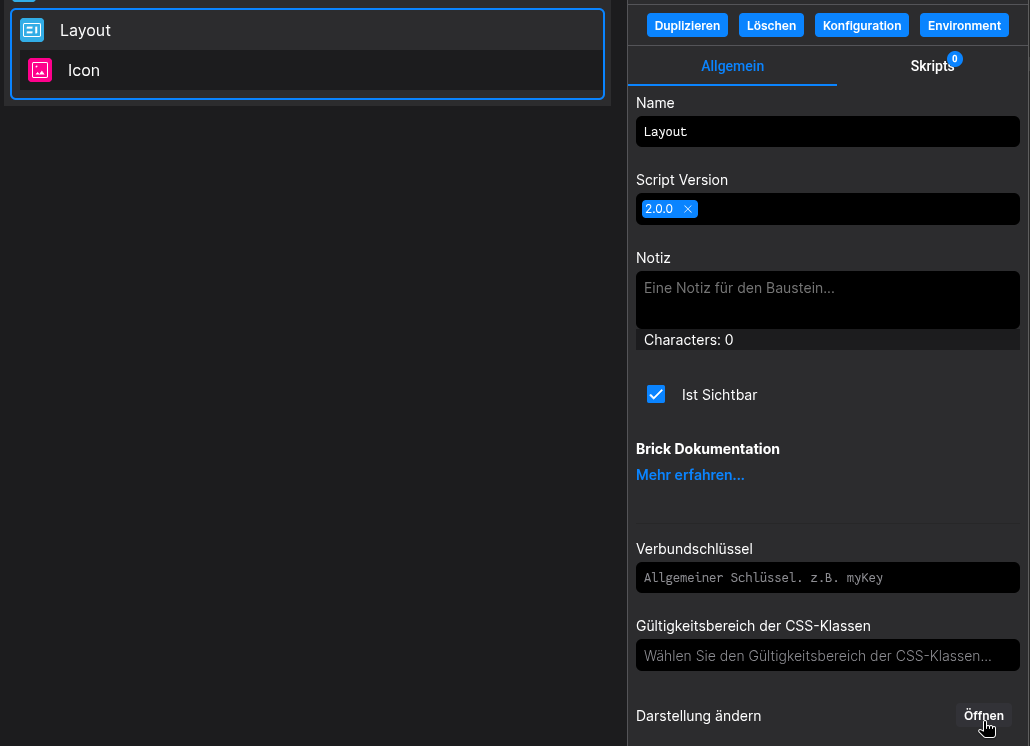
This example shows,shows how to style your Icon via CSSCSS.
(ForIn this exampleexample, wecustomStateName is set customStateName to insane and customSizeName to massive)
[state="insane"] {
  --fyz-sb-icon-fill: red;
  background-color: yellow;
}
[state="insane"]:hover {
  background-color: blue;
}

[size="massive"] {
  --fyz-sb-icon-width: 125px;
  --fyz-sb-icon-height: 125px;
}
Use the Layout Brick to style icons based on
thatthisexampleexample.
2.2. How to load in a custom SVG
(If your custom Icon uses required inline sizing, just set the size to custom)
const config: FyzSbIconConfig = {
  version: 'modern',
  size: 'custom',
  customSvg: `<svg> {...} </svg>`
};
2.3 How to update the icon via Scripting
// ⚙️ Retrieve the current configuration of the Brick
const config = fyzBrick.cRef.getConfig();

// 💱 Modify and merge the config to change to the desired icon/behavior
fyzBrick.cRef.mergeConfig({
  ...config,
  iconCategory: 'social',
  iconName: 'eco',
  size: 'xlarge',
  customStateName: 'insane'
});