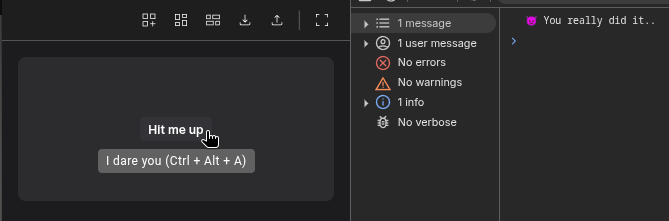
Action-Button
📘 Developer Guide
With the Action-Button Brick, you can easily add Buttons to your dashboards.
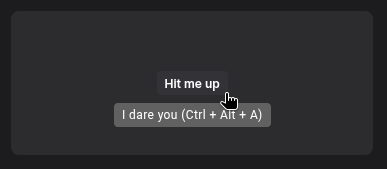
You are able to listen to the Actions, which will be emitted on Button click to react with Scripting onto them.
🔁 Example
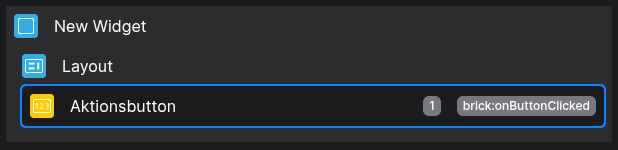
Designer
Runtime
⚙️ Configuration Properties
Config
| Key | Label | Description | Default Value |
|---|---|---|---|
show |
Visibility of the Button | Accepts either true or falseboolean |
true |
id |
ID of the Button | Can be selected using CSS via #flyze-button-idstring UUID |
Random UUID |
version |
Decider for the version of the Button | Please always use modern, since legacy will be removed in the future!It just exists for backward compability purposes modern legacy |
legacy |
text |
The text inside the Button | Accepts stringsstring |
- |
tooltip |
Displays a tooltip on hover | Accepts a string, which will be set inside the tooltip wrapperstring |
- |
state |
The state of the button | Allows to switch between pre defined states. Use custom to define your own state.default | inverted | transparent | disabled | hover | custom |
default |
size |
The size of the button | Allows to switch between pre defined sizes. Use custom to define your own size.xsmall | small | default | medium | large | custom |
default |
customStateName |
The custom state attribute name | e.g. insaneLets you create your own custom state. You can target via CSS with [state="insane"]string |
- |
customSizeName |
The custom size attribute name | e.g. massiveLets you create your own custom size. You can target via CSS with [size="massive"]string |
- |
Shortcut (config.shortcut)
| Key | Label | Description | Default Value |
|---|---|---|---|
key |
The key to be pressed | Accepts keys as strings e.g. aOnce this is set, the shortcut will be available string |
- |
ctrlkey |
Enables the Ctrl-Modifier | Accepts either true or falseboolean |
- |
altKey |
Enables the Alt-Modifier | Accepts either true or falseboolean |
- |
shiftKey |
Enables the Shift-Modifier | Accepts either true or falseboolean |
- |
Prefix-Icon (config.prefixIcon)
Suffix-Icon (config.suffixIcon)
🎨 CSS Variables
(These variables will even allow you to override predefined states without the use of !important)
State specific:
–fyz-sb-buton-bg translates to the background-color of the button
–fyz-sb-button-color translates to the text color of the button
Size specific:
–fyz-sb-button-font-size translates to the font-size of the button
–fyz-sb-button-height translates to the height of the button
–fyz-sb-button-padding translates to the padding of the button (Top, Right, Bottom, Left)
–fyz-sb-button-radius translates to the border-radius of the button
🛠️ Usage
Designer
(Use the build in configuration Inputs in the right Side-Nav)
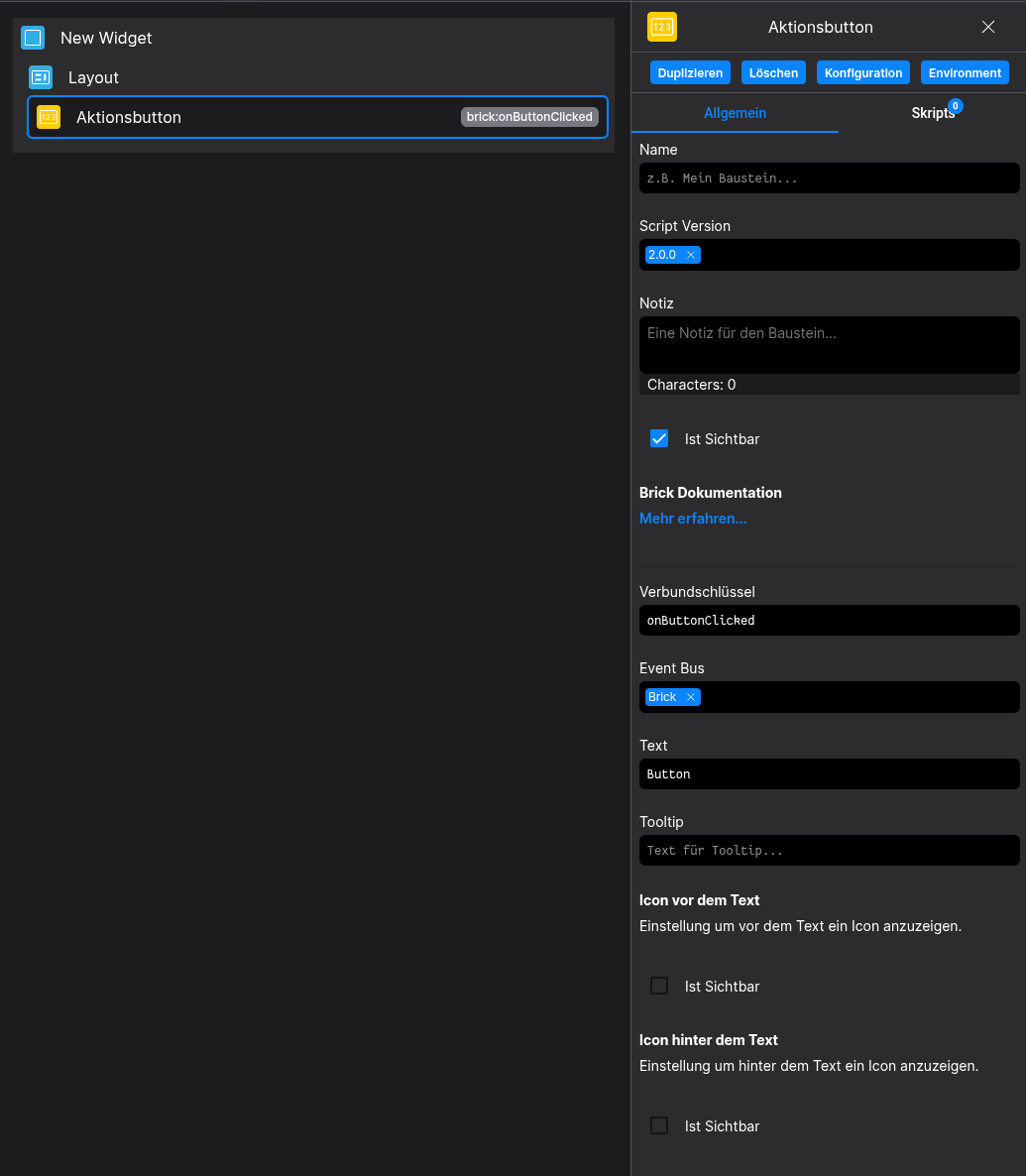
Config
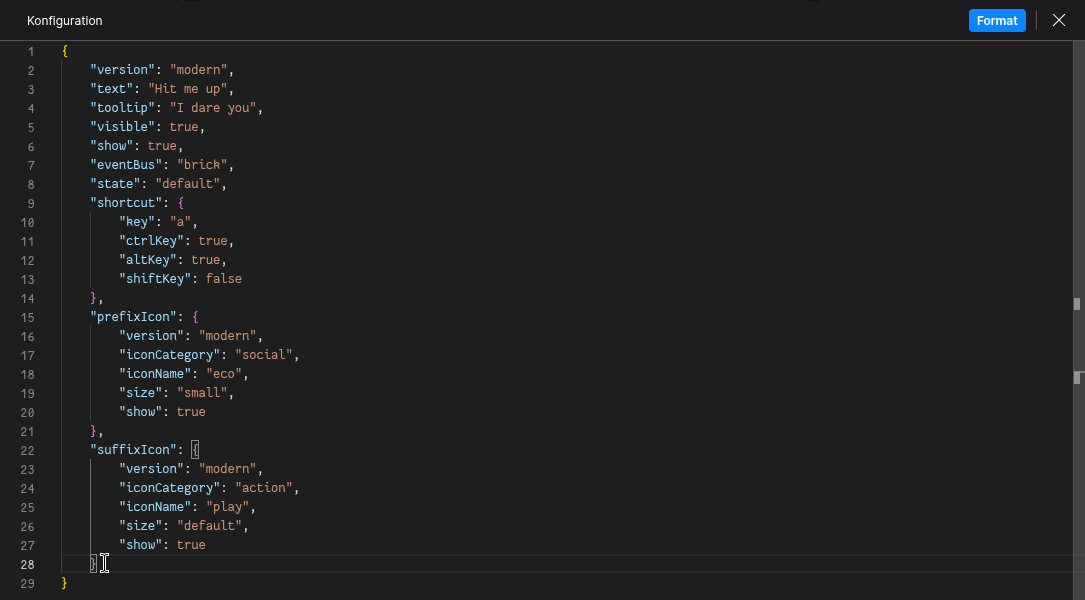
(Edit the whole configuration of the Button to your liking)
2. Programmatical Data
2.1 How to style custom States/Sizes
This example shows, how to style your Button via CSS
(For this example we set customStateName to insane and customSizeName to round-massive)
[state="insane"] {
  --fyz-sb-button-bg: red;
  --fyz-sb-button-color: yellow;
}
[state="insane"]:hover {
  --fyz-sb-button-bg: blue;
}

[size="round-massive"] {
  --fyz-sb-button-font-size: 32px;
  --fyz-sb-button-height: 78px;
  --fyz-sb-button-padding: 12px 8px 12px 8px;
  --fyz-sb-button-radius: 50%;
}
Use the Layout Brick to style buttons based on that example
2.2 How to update the Button via Scripting
// ⚙️ Retrieve the current configuration of the Brick
const config = fyzBrick.cRef.getConfig();

// 💱 Modify and merge the config to change to the desired button/behavior
fyzBrick.cRef.mergeConfig({
	...config,
	text: 'Hello, i am updated!',
	shortcut: {
		key: 'a'
		ctrlKey: true,
		shiftKey: true,
		altkey: false
	},
	state: 'custom'
	customStateName: 'updated-button'
})
2.3 Example of a fully fletched Button config
{
   "version": "modern",
   "text":"Hit me up",
   "tooltip":"I dare you",
   "visible":true,
   "show":true,
   "eventBus":"brick",
   "state":"default",
   "shortcut":{
      "key":"a",
      "ctrlKey":true,
      "altKey":true,
      "shiftKey":false
   },
   "prefixIcon":{
      "version":"modern",
      "iconCategory":"social",
      "iconName":"eco",
      "size":"small"
   },
   "suffixIcon":{
      "version":"modern",
      "iconCategory":"action",
      "iconName":"play",
      "size":"default"
   }
}
2.4 Example of reacting to a button action
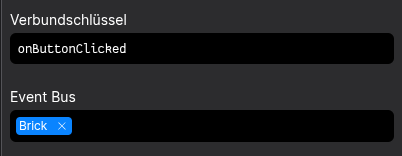
Define a Relation-Key in the Button-Configurator
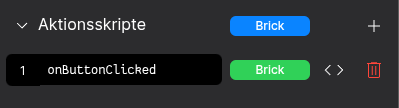
Define a Action-Script named after your Relation-Key
(Keep an eye on the Event-Bus Scope!)
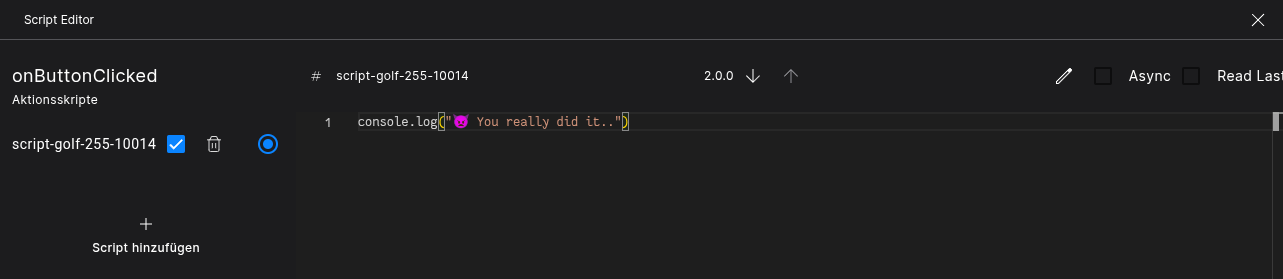
You'd better push the button and let me know 🤓