
Action-Button
📘 Developer Guide
With the Action-Button Brick, you can easily add Buttons to your dashboards.
You are able to listen to the Actions, which will be emitted on Button click to react with Scripting onto them.
🔁 Example
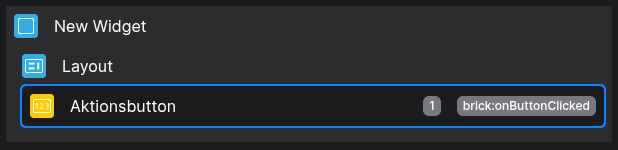
Designer
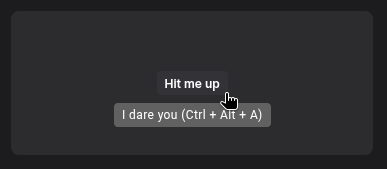
Runtime
⚙️ Configuration Properties
Config
| Key | Label | Description | Default Value |
|---|---|---|---|
id |
ID of the Button | Can be selected using CSS via #flyze-button-id string UUID |
Random UUID |
version |
Decider for the version of the Button | Please always use modern, since legacy will be removed in the future!modern-inline allows you to inject content into button directly in the template (Not viable in scripting!) It just exists for backward compability purposesM modern legacy modern-inline |
legacy |
text |
The text inside the Button | Accepts stringsstring |
- |
tooltip |
Displays a tooltip on hover | Accepts a string, which will be set inside the tooltip wrapperstring |
- |
state |
The state of the button | Allows to switch between pre defined states. You can also specify a string to define your own state and corresponding styles, see below default | inverted | transparent | disabled | hover | string |
default |
size |
The size of the button | Allows to switch between pre defined sizes. You can also specify a string to define your own size and corresponding styles, see below xsmall | small | default | medium | large | string |
default |
Shortcut (config.shortcut)
| Key | Label | Description | Default Value |
|---|---|---|---|
key |
The key to be pressed | Accepts keys as strings e.g. a Once this is set, the shortcut will be available |
string |
ctrlKey |
Enables the Ctrl-Modifier | Accepts either true or false (boolean) |
- |
altKey |
Enables the Alt-Modifier | Accepts either true or false (boolean) |
- |
shiftKey |
Enables the Shift-Modifier | Accepts either true or false (boolean) |
- |
Prefix-Icon (config.icon_prefix)
Suffix-Icon (config.icon_suffix)
🎨 CSS Variables
| Variable Name | Description |
|---|---|
--fyz-sb-action-button-bg |
Background color of the button |
--fyz-sb-action-button-color |
Text color of the button |
--fyz-sb-action-button-font-size |
Font size of the button text |
--fyz-sb-action-button-auto-font-size |
@see -auto- variables |
--fyz-sb-button-height |
Height of the button |
--fyz-sb-button-auto-height |
@see -auto- variables |
--fyz-sb-button-padding-tb |
Padding of the button (top and bottom) |
--fyz-sb-button-auto-padding-tb |
@see -auto- variables |
--fyz-sb-button-padding-lr |
Padding of the button (left and right) |
--fyz-sb-button-auto-padding-lr |
@see -auto- variables |
--fyz-sb-button-radius |
Border-Radius of the button |
--fyz-sb-button-auto-radius |
@see -auto- variables |
--fyz-sb-button-gap |
Gap between icon and text inside the button |
--fyz-sb-button-auto-gap |
@see -auto- variables |
The
-auto-variables are used to automatically adjust the respective property based on device view or respective parent components. They should not be set directly by the user. For each-auto-variable, there is a corresponding non--auto-variable that can be set by the user to override the automatic behavior.
🛠️ Usage
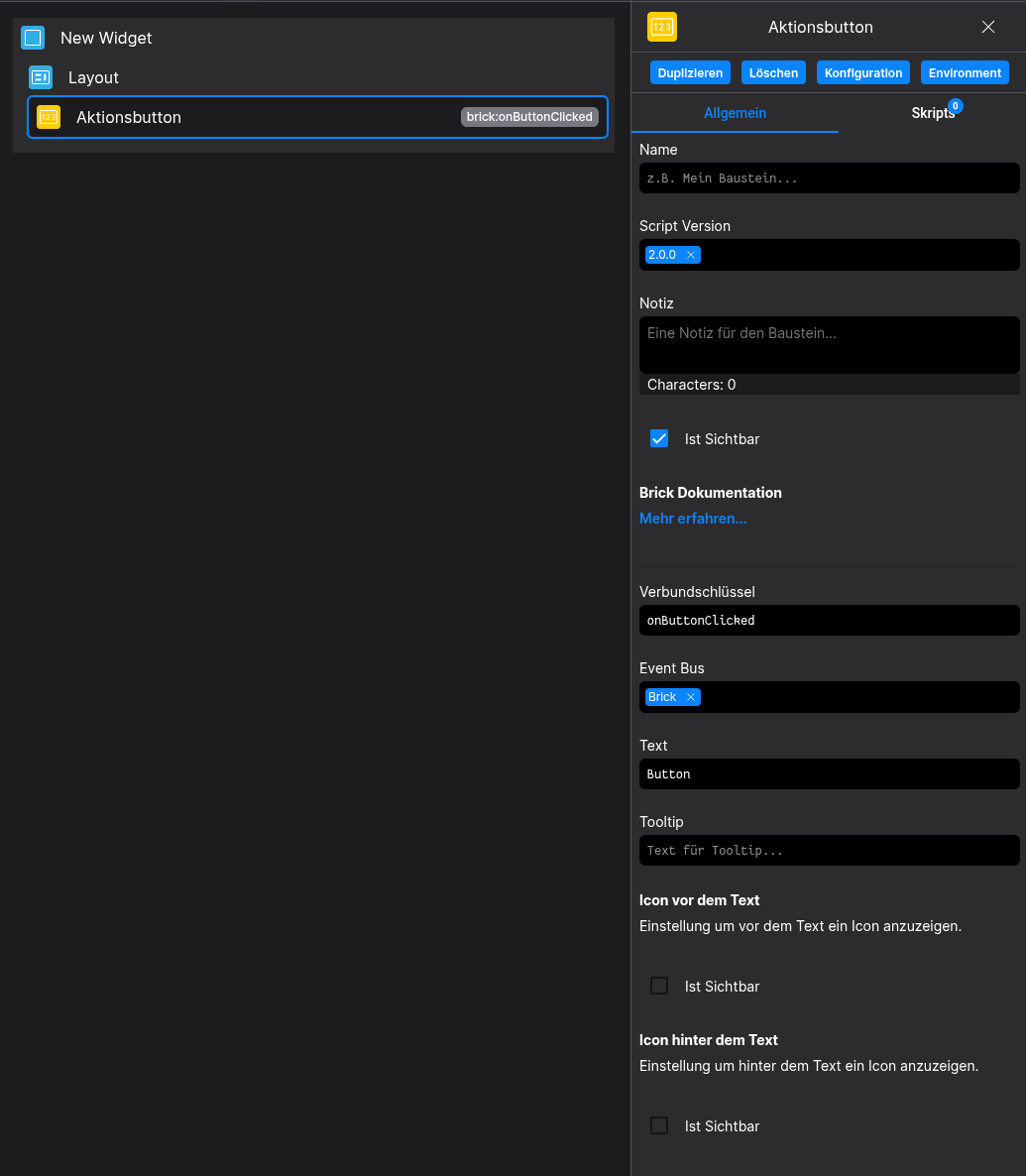
Designer
(Use the build in configuration Inputs in the right Side-Nav)
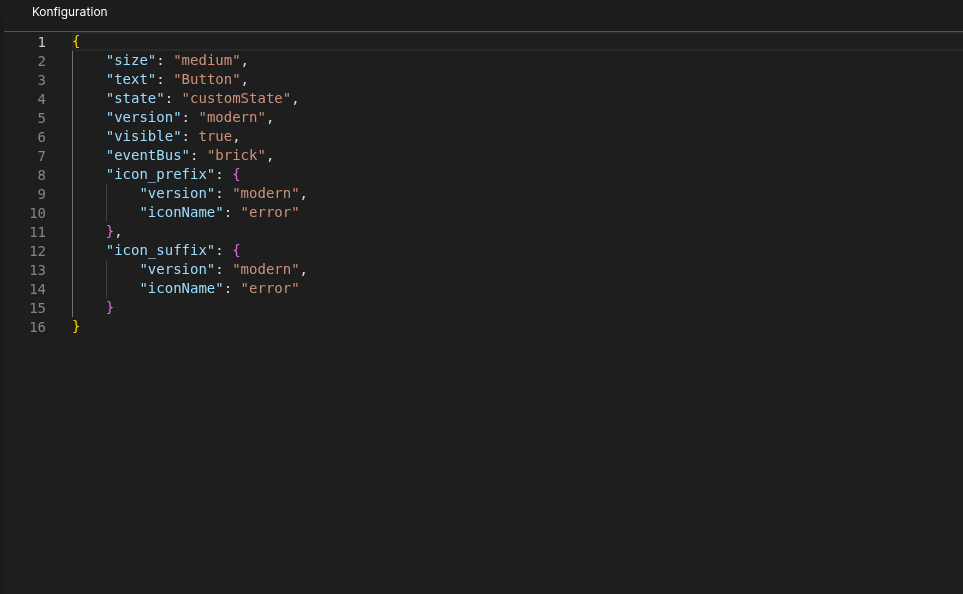
Config
(Edit the whole configuration of the Button to your liking)
⌨️ Programmatical Data
How to style custom States/Styles
This example shows, how to style your Button via CSS
(For this example we set customStateName to insane and customSizeName to round-massive)
[state="insane"] {
--fyz-sb-button-bg: red;
--fyz-sb-button-color: yellow;
}
[state="insane"]:hover {
--fyz-sb-button-bg: blue;
}

[size="round-massive"] {
--fyz-sb-button-font-size: 32px;
--fyz-sb-button-height: 78px;
--fyz-sb-button-padding-tb: 12px;
--fyz-sb-button-padding-lr: 8px;
--fyz-sb-button-radius: 50%;
}
Use the Layout Brick to style buttons based on that example
How to update the Button via Scripting
// 💱 Modify and merge the config to change to the desired button/behavior
fyzBrick.cRef.mergeConfig({ state: "customState2", tooltip: "Test after merge" })
Example of a fully fletched Button config
{
    "size": "medium",
    "text": "Button",
    "state": "customState",
    "version": "modern",
    "visible": true,
    "eventBus": "brick",
    "icon_prefix": {
        "version": "modern",
        "iconName": "error"
    },
    "icon_suffix": {
        "version": "modern",
        "iconName": "error"
    }
}
Example of reacting to a button action
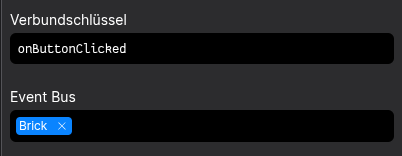
Define a Relation-Key in the Button-Configurator
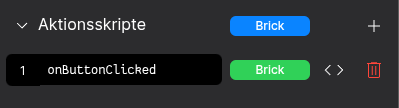
Define a Action-Script named after your Relation-Key
(Keep an eye on the Event-Bus Scope!)
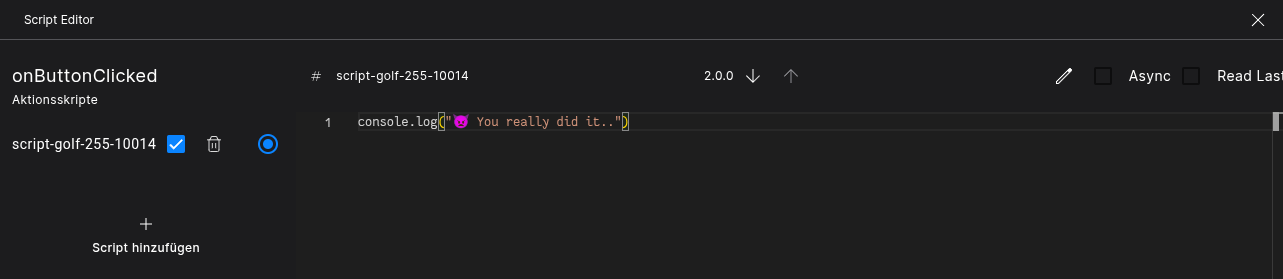
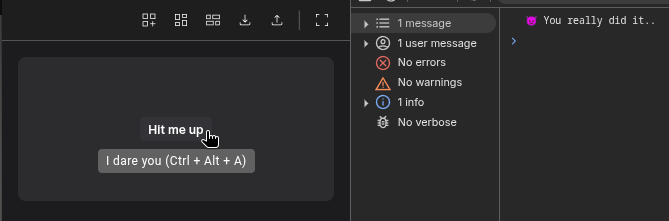
You'd better push the button and let me know 🤓
No comments to display
No comments to display