Badge-Collection Column
📘 Developer Guide
With the Badge-Array-Column Brick, you are able to define a collection of badges. It will display the corresponding badges depending on the defined props data set. Check out the example
🔁 Example
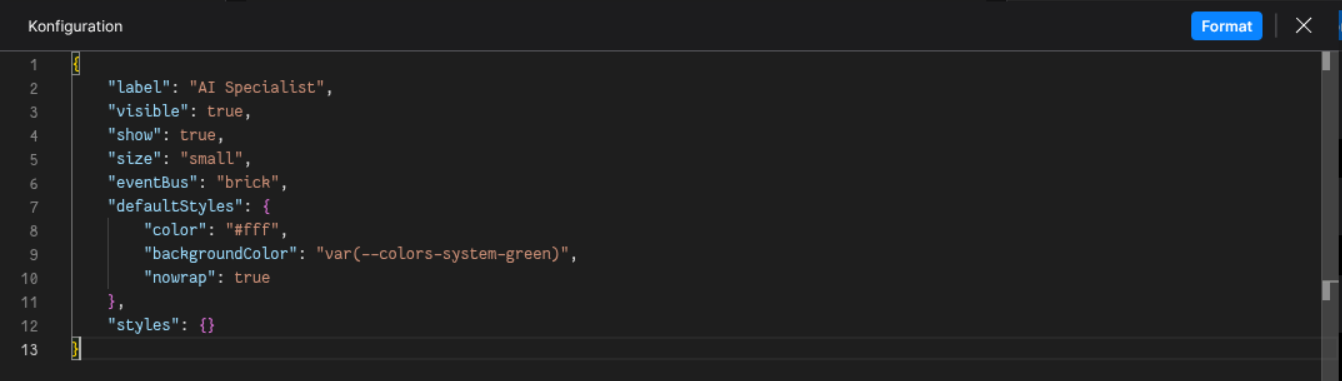
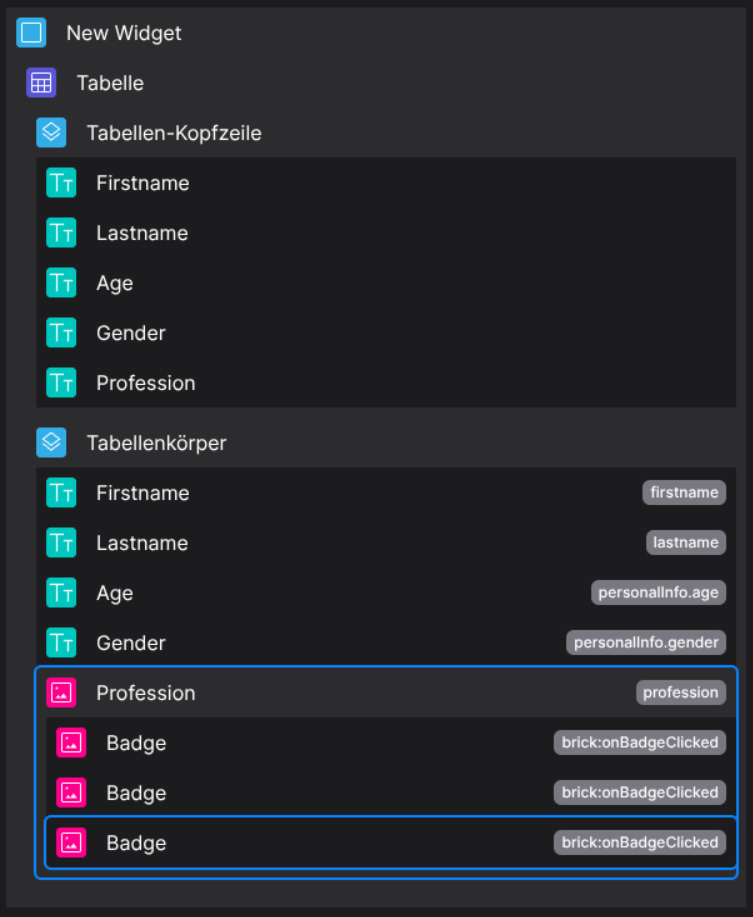
Designer
(Only dropable in body columns)
Runtime
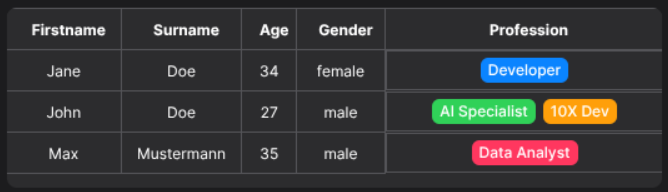
This example uses the following data set:
{
  "data": [
        {
            "id": "123",
            "firstname": "Jane",
            "lastname": "Doe",
            "personalInfo": {
                "age": 34,
                "gender": "female"
            },
            "profession": [
                "Developer"
            ]
        },
        {
            "id": "456",
            "firstname": "John",
            "lastname": "Doe",
            "personalInfo": {
                "age": 27,
                "gender": "male"
            },
            "profession": [
                "AI Specialist",
                "10X Dev"
            ]
        },
        {
            "id": "789",
            "firstname": "Max",
            "lastname": "Mustermann",
            "personalInfo": {
                "age": 35,
                "gender": "male"
            },
            "profession": [
                "Data Analyst"
            ]
        }
    ]
}
⚙️ Configuration Properties
(Extends BodyCell)
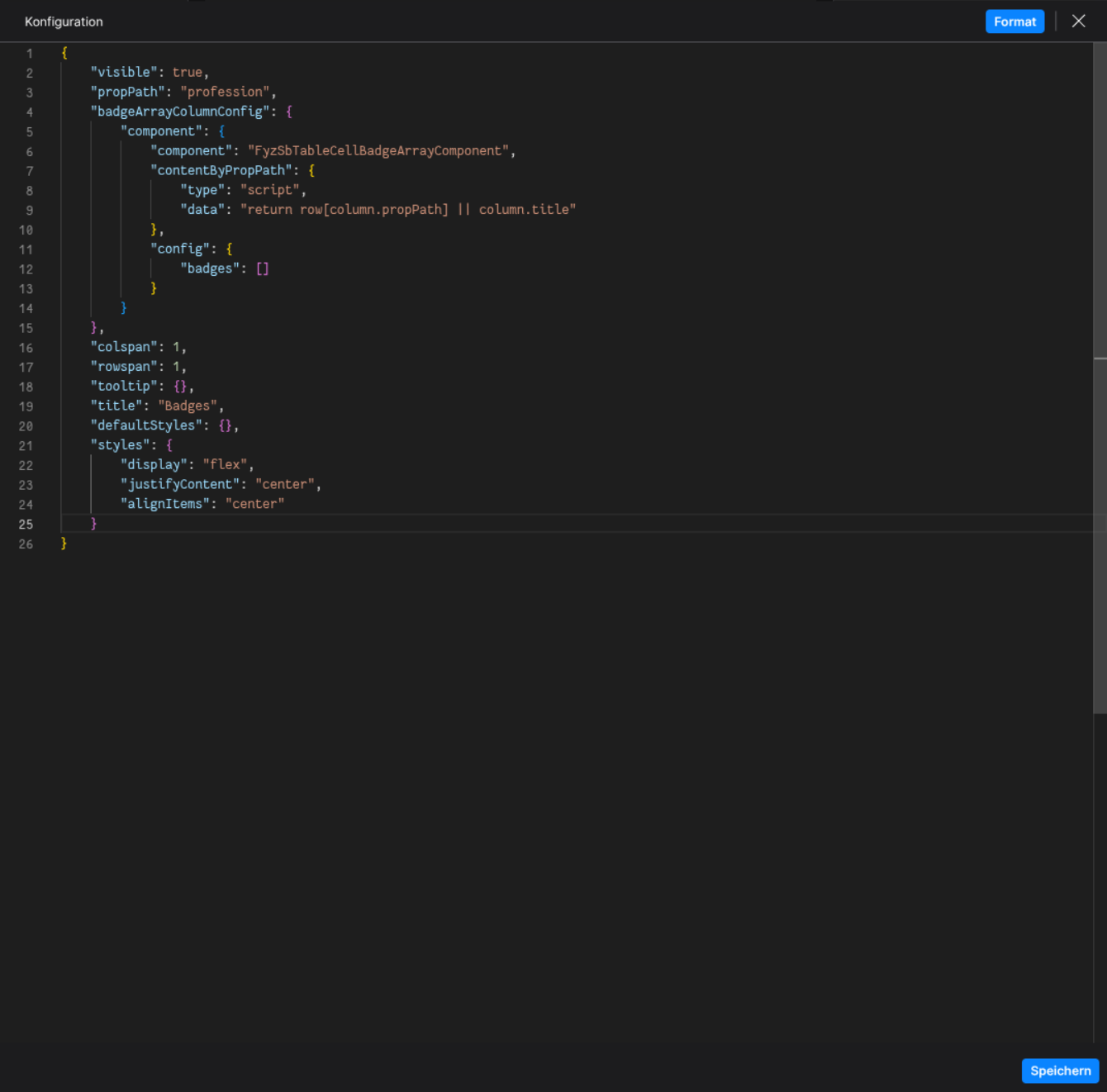
component: 'FyzSbTableCellBadgeArrayComponent'
component.config
| Key | Label | Description | Default Value |
|---|---|---|---|
badges |
The configurations of the badges | Find out more under Badge | - |
component.contentByPropPath
| Key | Label | Description | Default Value |
|---|---|---|---|
type |
The type of the display mechanism | 'script' |
'script' |
data |
The script which will be executed and parsed. | The script as string needs to return a valuestring |
|
🛠️ Usage
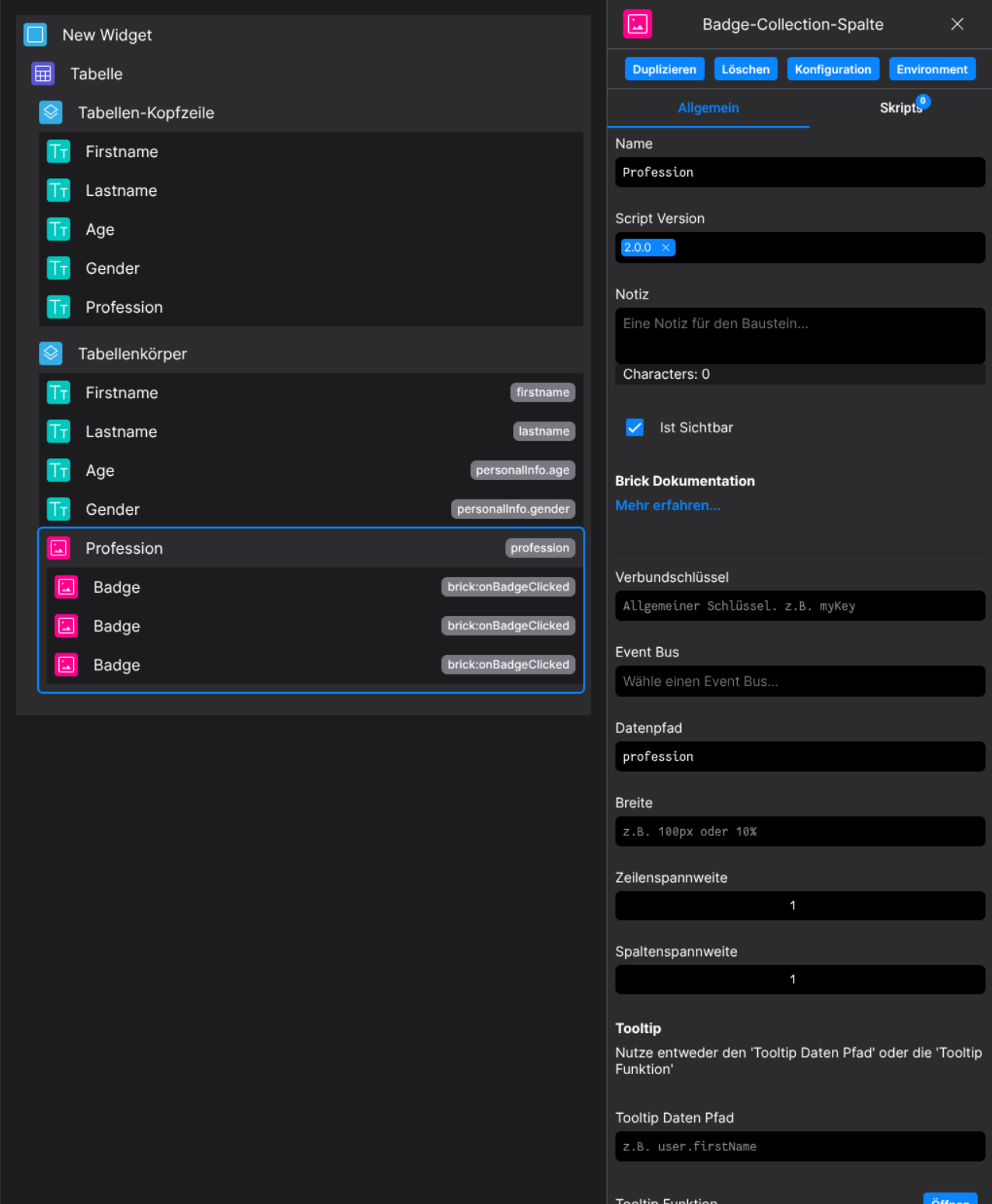
Designer
(Use the build in configuration Inputs in the right Side-Nav)
Config
(Edit the whole configuration of the Badge-Column to your liking)
2. Programmatical Data
2.1 Example of how to display badges depending on the item data
Setup a Badge-Collection Column and set the propPath onto the to observed property in the data set
It is important, that the observed property value is of type Array
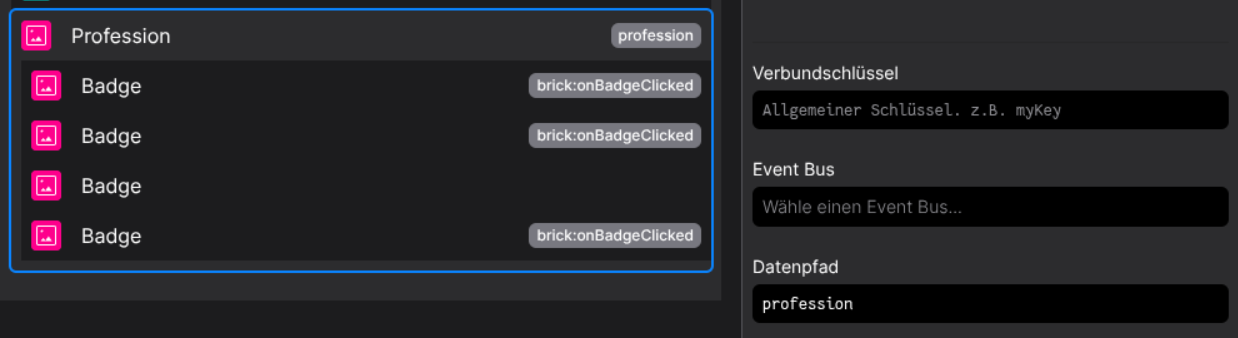
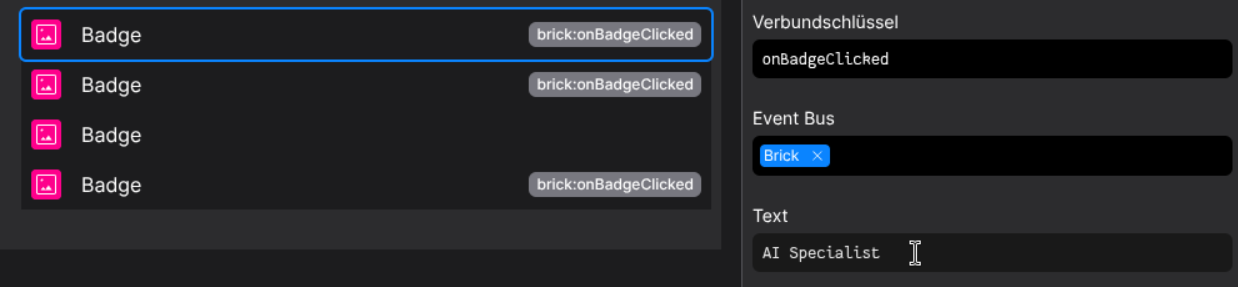
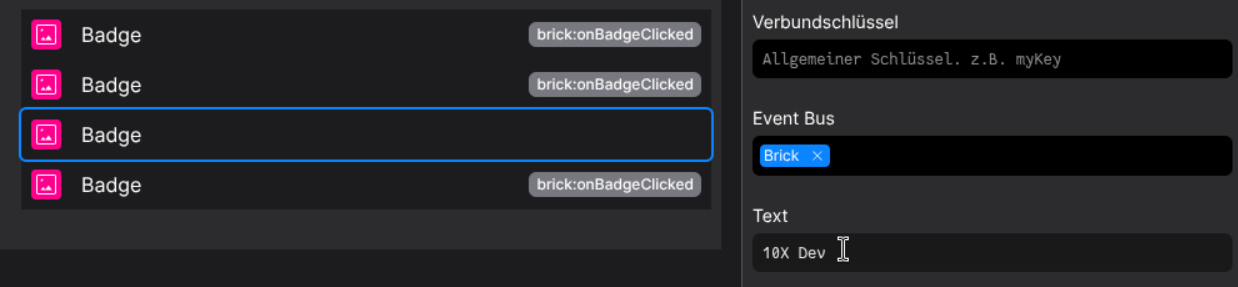
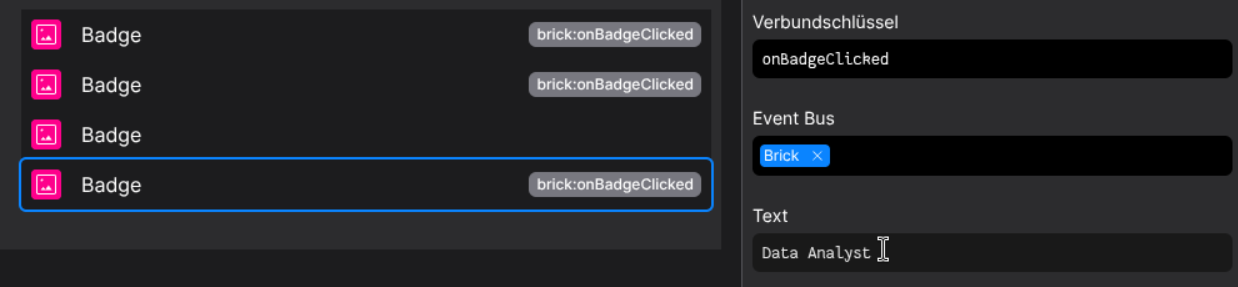
Depending on the table data, set up all needed badges, so all defined profession properties are covered.
Remember, based on the data
set,set, there are four professions defined: Developer, AI Specialist, 10X Dev, Data Analyst.
The Label of the Badge should match a profession entry
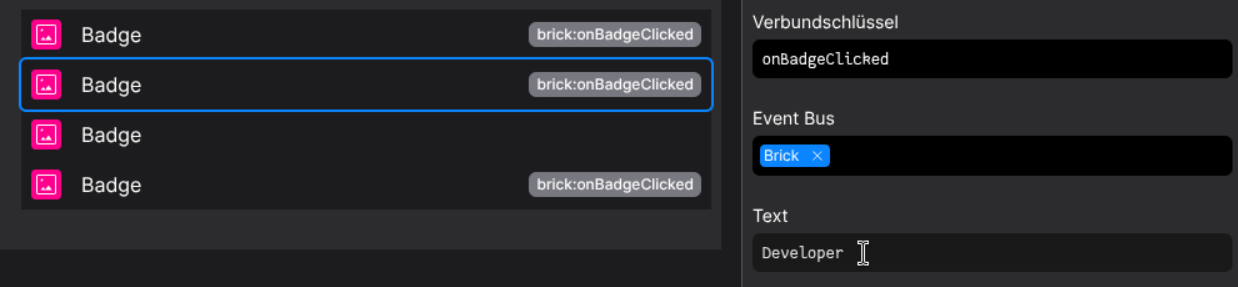
Be sure to style every badge config to your liking